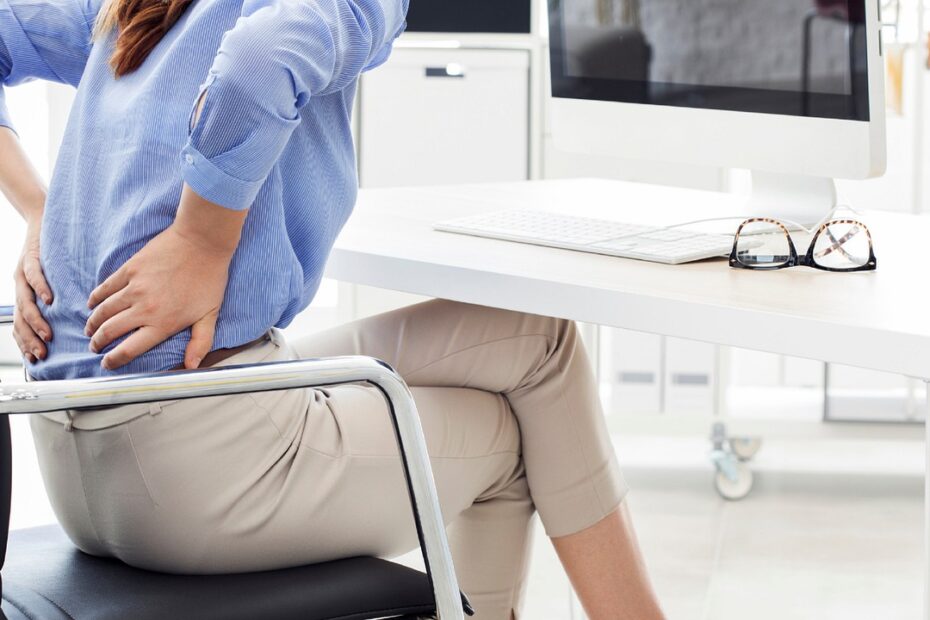
Adjustable seat height, lumbar support, and armrests help keep your spine neutral with less effort. It steadies your pelvis, carries part of your torso weight, and gives your legs and arms stable contact points during long desk sessions.
You’ll learn how seat fit, lumbar contact, recline, desk height, and monitor placement shape your comfort at home, school, or a shared office.
A Chair Makes Supported Sitting Easier to Maintain
An ergonomic chair does not force your body into a healthy position. It gives your pelvis, spine, thighs, and forearms places to rest, so you spend less effort resisting gravity during keyboard, mouse, and screen work.
Your chair needs to fit your body, desk, and task instead of asking your body to fit a fixed shape. Seat height adjustment, seat depth, armrest adjustment, lumbar support, and backrest recline and tilt tension give you the controls needed for that fit.
Neutral spine alignment starts with your pelvis against the backrest, a gentle inward lower-back curve, relaxed shoulders, and feet with firm floor contact. Your keyboard and monitor also need to sit close enough that your head does not drift toward the screen.
How ergonomic chairs support posture comes down to reducing unsupported strain rather than permanently changing your body. Chronic pain, numbness, weakness, or pain moving into an arm or leg needs clinical guidance.
A chair can make supported sitting easier, but it does not correct long-standing habits, chronic pain, or an underlying medical condition.
Because a chair can only support the posture you bring to it, alignment begins lower in the body.
The Pelvis Sets the Direction for Your Spine
Your pelvis acts as the base for your trunk. Once it rolls backward, the lower back flattens, the upper back rounds, and your head moves forward so your eyes can stay on the monitor.
The Backrest Carries Torso Weight
Lumbar support should meet the natural inward curve near your beltline. That contact can limit backward pelvic roll, while a contoured backrest gives your pelvis and mid-back a broader surface to lean against.
| Part you set | What it does for you | Fit sign you can feel |
|---|---|---|
| Your lumbar pad | It contacts your lower-back curve and steadies your pelvis. | Your lower back meets the pad without a hard bump. |
| Your seat pan | It holds your thighs while leaving room behind your knees. | Your knees bend freely without edge pressure. |
| Your armrests | They carry part of your forearm weight and reduce shoulder loading. | Your shoulders stay down while your elbows rest lightly. |
| Your recline | It spreads part of your torso load across the backrest. | Your back keeps contact without sliding forward. |
Seat depth matters because a long seat pan can press behind your knees and push you away from the backrest. Leave two to three fingers of space behind each knee while keeping enough seat surface beneath your thighs.
Backrest recline and tilt tension matter too. A lightly open angle near 100 to 110 degrees suits many desk tasks because your torso stays supported without turning keyboard work into a forward reach.
Neutral Sitting Gives You a Flexible Starting Position
Sit fully back, place your feet on the floor or a footrest, and let the backrest carry your lower back. Your shoulders should feel loose rather than pulled back like a soldier at attention.
The 90-90-90 Sitting Rule Offers a Fast Fit Check
The 90-90-90 sitting rule places your hips, knees, and elbows near right angles. It gives you a starting reference, but shoe thickness, desk height, body proportions, and task demands can shift those angles.
Your body does not need to hold three exact 90-degree angles all day. Close keyboard work can open your elbows slightly, and a phone call can suit a deeper recline without harming your setup.
Dynamic sitting means changing position as your task changes. Shift between upright typing, light recline for reading, standing for calls, and short walks so the same muscles do not carry the same load for hours.
Use the 90-90-90 sitting rule to spot obvious mismatch, not to police every degree. Your body needs room to shift, lean back, and reset.
A Body-First Setup Order Prevents Competing Adjustments
Dangling feet make your pelvis unstable before lumbar contact has a chance to work. Set the chair before moving monitor arms, keyboard trays, or desk accessories.
A Consistent Order Keeps Each Setting Useful
- Set seat height. Raise or lower your chair until your feet rest flat on the floor or footrest and your thighs feel supported.
- Check knee clearance. Keep your knees comfortably bent without the seat edge pressing into the back of either knee.
- Set seat depth. Leave two to three fingers of space behind your knees while keeping enough pan beneath your thighs.
- Place lumbar contact. Move the support to your beltline or natural inward curve, not the middle of your back.
- Set recline tension. Choose a light recline that holds your back in contact without letting your hips slide forward.
- Finish armrests. Rest your forearms lightly, then lower, widen, or move the rests away for close desk work.
How to adjust an ergonomic chair becomes clearer when you change settings in that order. Your hands reveal armrest errors quickly: high rests lift your shoulders, while wide rests pull your elbows away from your ribs.
Ergonomic chair lumbar support belongs at your lower-back curve, not at mid-back height. A pad set too high can feel like a hard bump, while a low pad can miss the area where your pelvis needs steady contact.
Even well-placed lumbar support cannot offset a work surface or display that keeps pulling you forward.
Your Desk and Monitor Can Undo Chair Fit
A well-fitted seat loses much of its value at a desk that forces your arms upward or your neck downward. Chair fit and your ergonomic workstation setup need to work as one system.
The Work Surface Needs to Meet Relaxed Arms
Set the keyboard and mouse so your elbows stay near your sides and your shoulders stay low. A high desk can make correctly set armrests feel wrong because your forearms must climb to reach the keys.
| Workstation mismatch | What your body does | What you can change |
|---|---|---|
| Your feet hang | Your pelvis loses a stable base. | Place a footrest under your feet. |
| Your desk sits high | Your shoulders rise toward your ears. | Lower your chair only with foot support, or raise the work surface. |
| Your monitor sits low | Your head bends forward and down. | Raise the monitor until your gaze lands near its upper third. |
| Your mouse sits far away | Your shoulder reaches forward all day. | Bring the mouse beside the keyboard. |
Monitor height and distance should let your head stay balanced over your torso. The Occupational Safety and Health Administration places this principle at the center of computer workstation guidance: fit the work area to your body instead of bending your body around the work area.
Your monitor can sit slightly below eye level as long as your neck stays neutral and your gaze lands near the upper third of the display. A screen placed too far away can pull your head forward even with a well-set backrest.
Discomfort Patterns Can Point to a Setup Mismatch
A sore area does not prove that your chair has failed. It can point to a relationship between seat settings, desk height, monitor placement, and the task you repeat for 30 minutes or more.
Specific Symptoms Offer Specific Clues
- Low-back ache. Check whether lumbar contact sits too high, too low, or disappears because your seat pan is too deep.
- Neck tension. Raise a low monitor or bring a distant screen closer so your head stops leading your torso forward.
- Shoulder tightness. Lower high armrests and pull the keyboard and mouse closer to your body.
- Knee pressure. Shorten the seat depth or raise the chair with a footrest beneath your feet.
- Sliding forward. Add backrest tension or reduce recline until your pelvis stays against the chair.
Change one setting and use the chair through a real task, such as a 30-minute spreadsheet session or video call. Several changes at once hide the cause, while one adjustment gives your body a clearer comparison.
Persistent back, neck, or shoulder discomfort can have causes beyond workstation fit. Your chair may reduce unsupported loading, yet it cannot resolve an injury, a nerve problem, or another medical condition.
Adjustment Range Matters More Than a Premium Label
Expensive materials cannot solve a chair that sits too tall, has a fixed deep seat, or holds your arms away from the desk. Ergonomic chair posture support depends on whether each control reaches your dimensions and task needs.
Fit Checks Reveal Limits Before Daily Strain Builds
| Chair type | Where it can suit your work | Limit you should check |
|---|---|---|
| Your adjustable office chair | It suits keyboard, mouse, and monitor work because your backrest and armrests can move. | Your seat height, depth, lumbar position, and armrests must reach your dimensions. |
| Your kneeling chair | It can change hip angle and reduce pressure on your seat during short task blocks. | Your knees and shins carry more load, and you lose a conventional backrest. |
ANSI/BIFMA standards cover performance and safety requirements for office furnishings, but they do not show whether a chair fits your desk or body. Check the lowest seat height, usable seat depth, lumbar travel, armrest width, and recline tension before relying on a label.
Your desk can also limit a chair that fits well on its own. A tall fixed desk, a shallow keyboard tray, or a low monitor can leave you reaching, shrugging, or leaning forward despite a wide adjustment range.
Bottom Line
Your chair works best as a responsive base, not a posture correction device. Give your feet a stable surface, place your pelvis against lumbar contact, set your desk and monitor within easy reach, and shift positions through the day.
Ergonomic chair posture support reduces the effort your body spends holding itself up, but movement still matters. Revisit your setup after a new desk, monitor, keyboard, task, or work schedule changes the demands on your body.
FAQ
Do ergonomic chairs fix your posture?
Muscles and habits,not a chair alone,determine whether posture changes last. They can make neutral sitting more comfortable by giving your pelvis, lower back, thighs, and forearms contact points, but your work habits, workstation layout, movement pattern, injury history, and medical factors still affect how your body feels.
How does an ergonomic chair work?
An ergonomic chair works by letting you set seat height, seat depth, lumbar contact, armrests, and recline around your body. Those settings reduce unsupported loading, help your backrest carry torso weight, and keep your feet, arms, and screen position from pulling you into a strained posture.
What is proper posture in an ergonomic chair?
Start by sliding your hips fully back, then rest your lower back against the lumbar pad and place both feet on the floor or footrest. Keep your shoulders relaxed, your elbows close to your body, and your monitor positioned so your head stays balanced over your torso.
How should lumbar support be positioned?
Set the pad to meet the inward curve of your lower back at about beltline height. It should feel like broad contact rather than a hard bump, and your pelvis should stay against the backrest without sliding forward.
Which ergonomic chair adjustments matter most for posture?
Seat height, seat depth, lumbar position, armrest height, recline tension, desk height, and monitor height shape your sitting position. Start with your feet and thighs, then set the backrest before changing armrests and screen placement.
Why is moving regularly still important when using an ergonomic chair?
Dynamic sitting reduces the load of holding one position for hours. You can shift between typing and reclined reading, stand during a call, or take a short walk during a refill break.