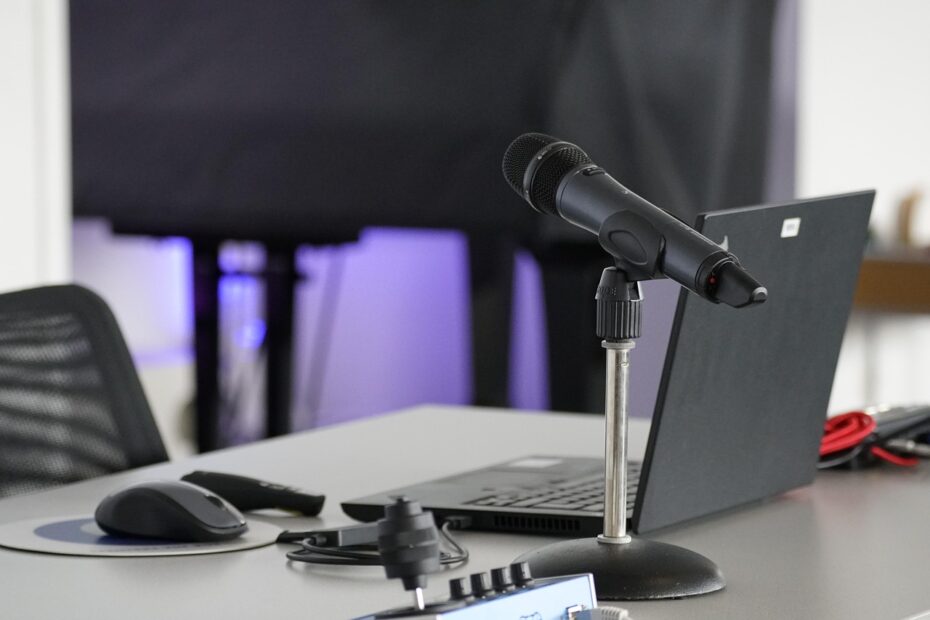
At a dining table, screen height, chair fit, and daily habits shape comfort in shared homes and spare rooms. A low laptop, distant mouse, or long seated stretch can leave your neck, shoulders, wrists, hips, and eyes under repeated strain.
You’ll learn how equipment position, neutral posture, movement habits, symptoms, low-cost changes, and workplace resources shape safer computer work at home, during travel, and across hybrid schedules.
Everyday Workspaces Shift Ergonomic Risk to You
A company office may include an adjustable chair, desktop display, keyboard, mouse, and desk planned around computer tasks. At home, your day may start at a dining table, move to a spare-room desk, and finish with a laptop on a sofa cushion.
Your control rises in a home workspace. You can shift lighting, choose a quieter room, and step away between calls. Yet your setup choices also carry more weight, since household furniture rarely matches computer work without a few changes.
| Work setting | Common conditions | Effect on your body |
|---|---|---|
| Conventional office | Adjustable seating, desktop displays, separate input devices, planned task areas | Your posture has more room for neutral alignment and equipment adjustment. |
| Dedicated home office | Variable furniture, with room for a display, chair changes, and lighting control | You can fit the space to your body, though a poor setup may stay in place for months. |
| Dining table | Fixed surface height, nonadjustable chair, shared household use | Your elbows, knees, and display height may conflict with each other. |
| Couch or bed | Soft surface, low screen position, little arm backing | Your spine, neck, wrists, and hips work harder to hold a usable position. |
| Coworking or travel desk | Changing chair height, lighting, outlets, and desk depth | Your setup needs portable equipment and a fast adjustment routine. |
Furniture is only part of the exposure. A traditional office day includes walks to meeting rooms, restrooms, printers, lunch areas, and parking spaces. Home work can remove those small interruptions, leaving you in one posture for two or three hours before discomfort catches your attention.
Laptop-first work creates a clear tradeoff. A low screen pulls your head down, while a raised laptop without separate input devices lifts the keyboard too high. That conflict between viewing distance and hand height sits behind much of remote work ergonomics.
Remote work does not automatically harm your body. Your result rests on furniture fit, display position, task variety, work-hour boundaries, and how long you remain still. Physical symptoms tend to appear before the setup error feels obvious.
Body Symptoms Can Expose Setup Errors
A sore area does not diagnose an injury, yet its location can point toward a workstation correction. Musculoskeletal disorders (MSDs) develop through repeated loading, awkward reach, muscle tension, and long stretches without position changes. Your discomfort deserves attention before it becomes part of your routine.
Neck and shoulder strain begins above the desk
Neck discomfort can follow a screen set below eye height or placed too far away. Your head moves forward to see small text, and your upper-back muscles hold that position for hours. Enlarging text and lifting the display reduces the urge to lean.
Shoulders rise where armrests block the desk, the desk sits too high, or your keyboard sits too far forward. A mouse placed 12 inches from your body can keep one shoulder working through an entire day. Pulling the mouse close brings your upper arm back beside your ribs.
| Body signal | Likely setup cause | Practical correction |
|---|---|---|
| Neck ache or forward head posture | Low screen or distant display | Raise the display near eye level and enlarge text before leaning forward. |
| Shoulder tension | Arms held away from your sides | Bring the keyboard and mouse close enough for relaxed upper arms. |
| Low-back fatigue | Flat chair back or slouched pelvis | Add lumbar backing and sit fully into the seat. |
| Hip or leg pressure | Seat edge presses behind knees or feet dangle | Adjust chair height, add foot backing, and leave space behind your knees. |
| Wrist soreness or tingling | Bent wrists, trackpad overuse, distant mouse | Use a separate mouse and keep your wrists straight rather than bent upward. |
| Headaches or eye strain | Glare, close viewing, tiny text, long screen focus | Change the screen angle, reduce reflections, and rest your distance vision. |
Lower-body and hand symptoms reflect other loads
Low-back pain can come from a chair with no lumbar shape, yet it also appears after long stillness in an ergonomic chair. Hips and legs react where a seat is too high, too deep, too hard, or paired with feet that cannot reach a firm surface.
Wrist and hand symptoms need extra care. A cramped laptop keyboard encourages bent wrists and narrow shoulder positions, while repeated trackpad work concentrates motion in the thumb and small finger joints. Numbness, weakness, reduced grip, or pain that wakes you at night calls for clinical or occupational-health advice.
Persistent pain is not a posture problem to push through. New numbness, weakness, dropping objects, spreading pain, or symptoms that limit your work tasks need timely professional evaluation.
Eye fatigue has a separate pattern. Reflections from a window, bright light behind your display, or a screen held too close can lead to squinting and headaches. Those signs point directly toward chair height, desk height, display placement, and lighting choices.
Chair and Desk Fit Set the Posture Baseline
Your chair sets the height relationship for nearly everything above it. Start there, because a raised display cannot solve feet that dangle or shoulders pulled upward toward a high desk surface.
The 90-90-90 rule gives you a starting point
When seated, keeping elbows, hips, and knees near 90 degrees can support a more neutral posture. It offers a useful reference, not a rigid pose to hold all day. A body that moves through several comfortable positions handles computer work better than a body held still.
Set chair height so both feet rest flat on the floor or footrest. Your thighs should rest on the seat without pressure behind the knees. Leave a small gap between the seat edge and your calves to avoid a hard edge pressing into the back of your legs.
Seat depth matters as much as height. Sit back until your lower back touches the chair, then check for space about two or three fingers wide between the seat edge and the back of your knee. A deep seat can pull your pelvis forward and weaken lumbar backing.
Desk height follows relaxed shoulders
Rest your forearms near parallel with the floor while your shoulders stay loose. The surface should allow that position without hunching upward, reaching down, or sharply bending your wrists against the desk edge.
Your dining table may sit too high for your chair. Raise the chair with a firm cushion, then place stable foot backing under your feet. A sturdy box, a slanted footrest, or stacked books beneath a firm surface can suit short-term work.
A low desk creates the opposite issue. Stable furniture risers can lift a work surface, yet loose stacks that wobble beneath a keyboard create another hazard. Your target is stable contact, relaxed joints, and neutral posture rather than visual symmetry.
Display and Input Placement Reduce Neck and Wrist Load
After your seat and desk stop fighting each other, display height becomes easier to judge. Your eyes should meet the upper portion of the screen without sustained chin lifting or downward neck bending.
Viewing distance and glare shape visual comfort
Place the main display near eye level and about an arm’s length away. Larger displays can sit slightly farther back, while small text should be enlarged rather than solved by leaning toward the screen. This relationship covers monitor height and viewing distance without forcing your head forward.
Window glare can turn a display into a mirror. Position the screen at a right angle to the window where space allows, close blinds, and aim task lighting toward documents rather than directly into your eyes. Your screen brightness should feel close to room brightness, not like a lamp in a dark room.
| Screen issue | What your body does | Adjustment |
|---|---|---|
| Screen below eye level | Your neck stays bent downward | Lift the display with a stand or stable raised surface. |
| Screen too far away | Your head moves forward and your eyes work harder | Bring the display closer and increase font size. |
| Bright window behind screen | Your eyes work against reflections | Rotate the desk or shade the window. |
| Two displays at unequal angles | Your neck twists repeatedly | Center the main display and place the other beside it. |
Separate input devices solve the laptop tradeoff
A laptop-only station locks screen height and keyboard height into one object. Leave it low and your neck bends. Raise it high and your wrists reach upward toward the built-in keys. Neither position suits a full keyboard-heavy day.
An external keyboard and mouse separate those demands. Raise the laptop screen closer to eye level, place the keyboard near elbow height, and keep the mouse beside it. Your elbows can stay near your body, while your wrists remain straight rather than folded toward either side.
Trackpads suit short tasks, travel edits, and quick replies. Extended spreadsheet work, design work, coding, or repeated clicking calls for a mouse that fits your hand and stays close enough to avoid shoulder drift. Keyboard and mouse placement has more effect on your body than decorative desk accessories.
Those same alignment principles still apply when the desk disappears into a kitchen table or hotel room.
Raise a laptop only after adding separate input devices. Books beneath a laptop improve neck angle while creating a wrist problem unless the keyboard and mouse move down with your hands.
Small and Temporary Spaces Need Flexible Fixes
A kitchen table can work for several hours with targeted changes. Its fixed height remains the main limit, so your chair, foot position, laptop elevation, and input devices must work around that surface rather than against it.
Dining tables respond to simple changes
Use the most stable chair available, and sit against its back rather than perched at the front edge. A folded bath towel at the curve of your low back can fill empty space and reduce the slump that appears after lunch.
Raise a low laptop with a stable stand or firm stack of books. Then place a compact keyboard and mouse on the table. Your feet can rest on a box, yoga block, or footrest substitute, provided it does not slide under pressure.
For example, a 5-foot-4-inch worker at a 30-inch dining table may need a raised chair and foot backing to bring elbows toward desk level. A 6-foot-2-inch worker at the same table may need a thicker keyboard platform or a different task location.
Sofas and beds suit short tasks
Soft cushions let the pelvis roll backward, while screens sink toward your lap. That combination drives a rounded lower back, forward head position, and unsupported wrists. Use sofas and beds for a 10-minute message, brief video call, or casual reading rather than long keyboard sessions.
Hybrid work ergonomics depends on carrying sound setup habits between locations. A small portable kit reduces the pressure to improvise at a coworking desk, hotel table, shared office, or hot-desk station.
- Compact keyboard: Keep your hands at a usable height after raising a laptop screen.
- Travel mouse: Reduce repeated trackpad motion during detailed work.
- Laptop stand: Lift your screen without balancing it on unstable household objects.
- Charging cable: Keep equipment placement flexible instead of working beside the only outlet.
- Foot backing: Use a light folding rest or stable substitute where chairs sit too high.
- Glare control: Wear a cap or choose seating with light coming from the side.
Temporary workspaces call for modest expectations. Your aim is to reduce the largest strain for the task duration, then change position or move locations. A travel setup does not need to copy a full office to protect your neck and hands for an afternoon.
Workstation Changes Should Follow Impact and Cost
The fastest fixes rarely require new furniture. Screen height, mouse distance, chair position, and light direction can shift within 15 minutes, showing you which limits remain after the basic fit improves.
| Priority level | Changes to make | Problem addressed |
|---|---|---|
| No-cost changes | Move the mouse closer, alter chair height, raise the screen safely, block glare, schedule movement | Reduces reach, neck bend, reflections, and static posture exposure. |
| Under-$50 additions | External keyboard, mouse, laptop stand, footrest, lumbar cushion | Separates screen and hand height while improving lower-body contact points. |
| Long-term equipment | Ergonomic chair, suitable desk, external display, sit-stand surface | Addresses persistent fit problems in a dedicated daily workspace. |
Visible errors deserve attention before new furniture
Use a short self-audit before spending money. Sit down, type for five minutes, and watch the position your body takes without conscious correction. Your default posture reveals a mismatch better than a carefully posed desk photo.
- Check your feet: Place both feet on a firm surface rather than leaving them suspended.
- Check your shoulders: Lower them, then move input devices until that relaxed position remains available.
- Check your screen: Lift it or move it closer before leaning forward to read.
- Check your wrists: Keep them straight instead of pressing them into a sharp desk edge.
- Check your light: Remove reflections that make you squint or crane toward the display.
- Check your breaks: Put a movement cue beside tasks that absorb your attention.
Equipment should solve a named limitation
An ergonomic chair helps where seat height, back shape, arm position, or seat depth does not fit your body. An external display helps where laptop viewing height stays too low. A sit-stand surface fits spaces with enough floor area and a real reason to alternate positions.
Do not expect one chair or desk to erase pain from every source. Repetitive strain injury (RSI) and other MSDs can involve workload, prior injury, stress, task speed, and recovery time. Equipment changes work best alongside task pacing and movement.
Remote work can improve ergonomics where you have dedicated space, control over timing, and an equipment stipend. The worthwhile purchase removes a documented limitation rather than adding another object to a crowded room.
Even a well-chosen upgrade cannot offset the strain of holding one position for hours.
Movement Keeps a Well-Fitted Setup From Becoming Static
Even a carefully fitted chair becomes uncomfortable after too long in one position. Muscles need variation, joints need motion, and eyes need distance. Your workstation reduces awkward loading, while movement interrupts static loading.
Posture variety works better than a frozen pose
Alternate seated work, standing tasks, short walks, and tasks with different visual distances. Standing for eight straight hours only swaps one static posture for another. Change is the useful part.
Attach microbreaks and movement to events already built into your day. Stand after a meeting ends, walk during a file upload, roll your shoulders after a long message, or refill water between calls. These 30- to 90-second pauses interrupt the long still stretches that home work can hide.
- After each call: Stand, walk a few steps, and reset your shoulders before opening the next task.
- During waiting time: Look away from the display while files load or software updates.
- At meal breaks: Leave the work area rather than eating over the keyboard.
- Every hour: Change posture, refill water, or take a brief room-to-room walk.
- Between task types: Move before shifting from focused typing to another screen-heavy block.
Screen rest and work boundaries affect fatigue
The 20-20-20 rule gives your eyes a simple reset: about every 20 minutes, look at something around 20 feet away for 20 seconds. It does not replace vision care, display adjustments, or sleep, yet it reduces nonstop close-up focus.
Work-from-home arrangements do not automatically cause depression. Isolation, excessive workload, weak work-hour boundaries, financial strain, and limited social contact can affect mental health. A comfortable workspace can reduce physical fatigue, but it cannot replace workload control or human contact.
Close the laptop at a planned end time where your role allows it. A desk in the bedroom can blur work and rest more than a dedicated corner does, so packing away a portable setup can give your body and attention a clear stopping cue.
Employers and Employees Share Parts of the Response
A new ache after several weeks of laptop work is useful information, not a personal failure. Your own adjustments matter, yet your employer also shapes the equipment, training, workload, and reporting options available to you.
Workplace duties vary by location and policy
A California employee may receive different support depending on job role, employment status, home address, and company rules. Check your organization’s remote-work and health-and-safety materials rather than assuming every home desk follows the same rules as a company office.
The Occupational Safety and Health Administration offers workplace safety material, but home arrangements do not all receive the same inspection approach as company worksites. The Americans with Disabilities Act can affect accommodation requests in covered jobs where a medical condition changes the equipment or schedule you need.
North Carolina State University publishes home workstation education through its environmental health and safety material. That example shows how institutions can translate basic ergonomic principles into remote routines before pain becomes persistent.
Practical employer resources extend beyond furniture
Virtual ergonomic assessments allow a trained professional to view chair height, screen angle, desk depth, lighting, and work habits through a video session. The advice fits your actual room and equipment rather than a generic office diagram.
Employer assistance can include equipment stipends, reimbursement rules, workstation training, external keyboards and mice, accommodation pathways, and realistic workload expectations. Your manager cannot see your home setup, so a clear reporting channel gives you a route to raise a concern.
Run a self-audit after new discomfort appears. Review chair contact points, display position, keyboard and mouse reach, room lighting, break pattern, and recent workload changes. Seek occupational-health or clinical care where symptoms persist, worsen, include numbness or weakness, or limit sleep and normal tasks.
Final Takeaways for Your Daily Setup
Your body does not care whether a screen sits in a headquarters office or beside a kitchen window. It responds to repeated reach, bent joints, poor visual angles, and long still periods. Remote work ergonomics improves through a clear sequence: fit the chair and desk, separate the screen from the keyboard, vary your position, and act early on discomfort that does not settle.
FAQ
How does remote work affect office ergonomics?
Remote work shifts ergonomic decisions from a planned office to your home, travel desk, shared table, or temporary laptop station. Your equipment, posture, lighting, work-hour boundaries, and movement habits can all affect discomfort during computer work.
Why are ergonomic injuries more common when working from home?
Home work can remove short walks, planned breaks, adjustable equipment, and separate screens or input devices. Long seated stretches, low laptop screens, trackpad-heavy work, and furniture that does not fit your body can add repeated strain.
What is the 90-90-90 rule in ergonomics?
The 90-90-90 rule places your elbows, hips, and knees near 90 degrees while seated. You should use it as a starting reference, with feet on the floor or footrest, relaxed shoulders, and room to shift position rather than holding a rigid posture.
How should a home-office monitor, keyboard, mouse, and chair be positioned?
Place your display near eye level and about an arm’s length away. Keep the keyboard near elbow height, set the mouse beside it, rest both feet on a firm surface, and sit back with lumbar backing behind your lower back.
What are the most common ergonomic problems for remote workers?
Common problems include neck and shoulder tension from low laptop screens, low-back or hip discomfort from poor chair fit, wrist strain from trackpad-heavy work, and eye strain from glare or close viewing. Long uninterrupted sitting can intensify each problem.
What ergonomic problems can result from working on a laptop all day?
A laptop can pull your neck downward where the screen sits low and bend your wrists where the keyboard sits high. Repeated trackpad motion can add hand and thumb strain, while a fixed seated position can add back, hip, and eye fatigue.